
Wood & plywood
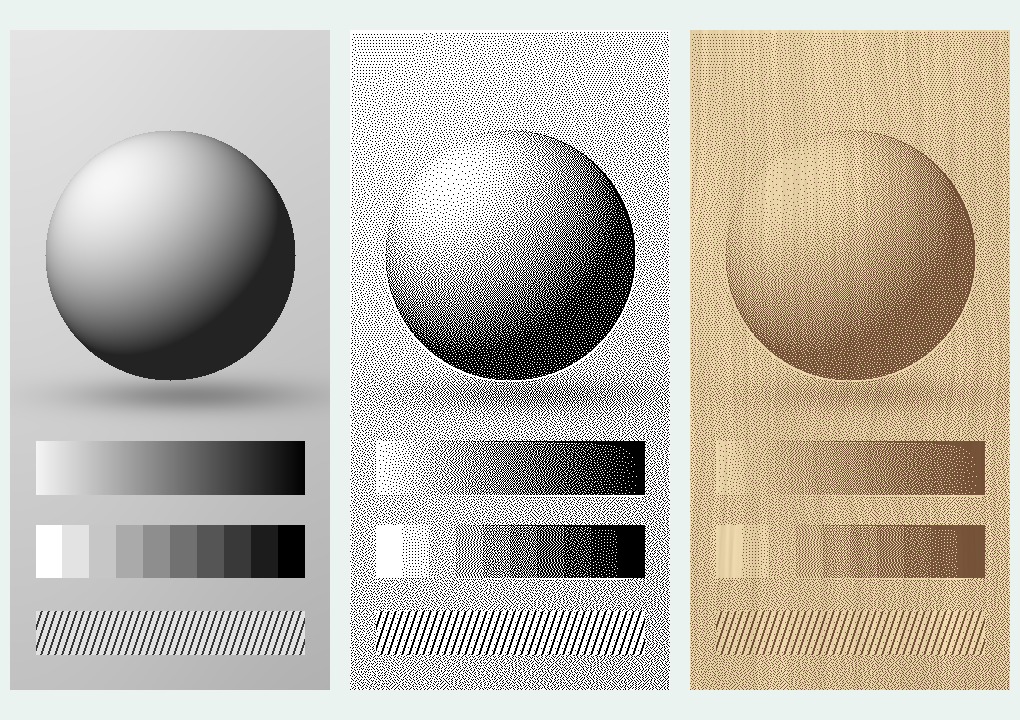
Judge tonal separation against a light, medium or dark grain.
PHOTO LAB BY SPECIALISED
Turn a photograph into a carefully prepared laser engraving image, straight from your browser.
Adjust the tones, preserve useful detail and choose how the dots fall. Compare the original, the dithered bitmap and a material preview before you export.
Free browser preview · No account needed
Hosted by Specialised Laser Systems. Images processed on your device.
FROM PHOTOGRAPH TO ENGRAVING
A simple photo preparation workflow for personalised gifts, workshop projects and classroom making.
Open your image, crop or rotate it, then set the engraving width and DPI. Working at the intended output size helps you judge which details will survive.
Balance brightness, contrast and midtones. Lift shadows, control highlights and apply local contrast or gentle sharpening before dithering.
Compare Stucki, Floyd–Steinberg and ordered dithering, or use a solid threshold. Adjust dot scale and density; inspect at 100% to see the output pixels.
Export a monochrome BMP or PNG with your chosen dimensions and resolution. Open it in a compatible laser workflow and set the machine’s engraving parameters there.
Photo Lab is a standalone tool for preparing raster artwork. You do not need a Kent controller upgrade to try it. Use the exported bitmap with software that supports its format, check the imported dimensions and avoid applying a second dither where your laser software offers a pass-through option.
PHOTO ENGRAVING ON WOOD, ACRYLIC & MORE
Explore light, medium and dark wood, clear and coloured acrylic, slate, leather and anodised aluminium.
Compare the dithered artwork with a simulated engraved result. Adjust the surface appearance, or upload a photo of your own material to preview the image against its actual grain or texture.
Invert the image for surfaces that engrave light. Use the separate mirror control when preparing artwork for rear engraving on clear acrylic.
The material view is a visual guide, not a prediction of laser output. Test a small sample with your material, focus, speed and power settings.
Judge tonal separation against a light, medium or dark grain.
Explore light engraved marks, inversion and mirrored artwork.
Compare a light mark on a dark base, or use your own surface photograph.
DETAIL BEFORE DOTS
Local contrast and tone controls help reveal useful features before converting the image to black and white. Zoom in to judge the pixels, then zoom out to judge the whole picture.
SETTINGS THAT STAY
Last-used settings are remembered in the same browser. Save named presets for repeat work, and export a backup. Reopen the source photograph when you return.
YOUR IMAGES, YOUR DEVICE
No account or software installation is needed for the browser preview. Artwork and material photographs are processed locally on your device, without uploading them to a server.
PHOTO LAB EXPLAINED
Dithering represents shades of grey with a pattern of black and white dots. Those dots form a monochrome engraving bitmap. The pattern, output resolution and dot scale affect how tones and fine details appear.
The current browser preview is free to try without an account. You can prepare your image, explore material simulations and export the resulting bitmap. Open Photo Lab using the links on this page; the application is hosted on the Specialised Laser website.
Yes. Photo Lab provides image adjustments, inversion and material previews to help prepare artwork for these surfaces. The correct engraving settings still depend on your laser and material. A test engraving is the best way to confirm the final result.
No. It prepares and exports the image. Choose power, speed and machine operation in your laser software. If you also need vector drawing, explore Forma2D; for a new workflow on an existing machine, see our controller upgrades.
TRY YOUR NEXT PHOTOGRAPH
Open the free browser preview and start preparing your laser engraving image.